
Backup Disk works in pairs: the Mac app shares the folders you choose, and the iPhone or iPad app copies them to the device. Your files go directly from your Mac to your device — nothing passes through a server or a cloud.
Requirements
- A Mac with macOS 13 Ventura or later.
- An iPhone or iPad with iOS / iPadOS 16 or later.
- Both devices on the same Wi‑Fi network, or connected with a cable.
1 - Install Backup Disk on both devices
Download Backup Disk for your Mac from the Mac App Store and for your iPhone or iPad from the App Store. It’s one app: a PRO purchase made on one device also unlocks the others signed in with the same Apple Account.
When you open the app for the first time, a short introduction explains how it works. You can open it again at any time from How It Works (in Settings on iPhone and iPad, and in the gear menu on the Mac).
2 - Choose folders on your Mac
Open Backup Disk on your Mac and click Add Folders, or simply drag folders from Finder into the window. Every folder in Folders to Back Up becomes available to your iPhone and iPad.
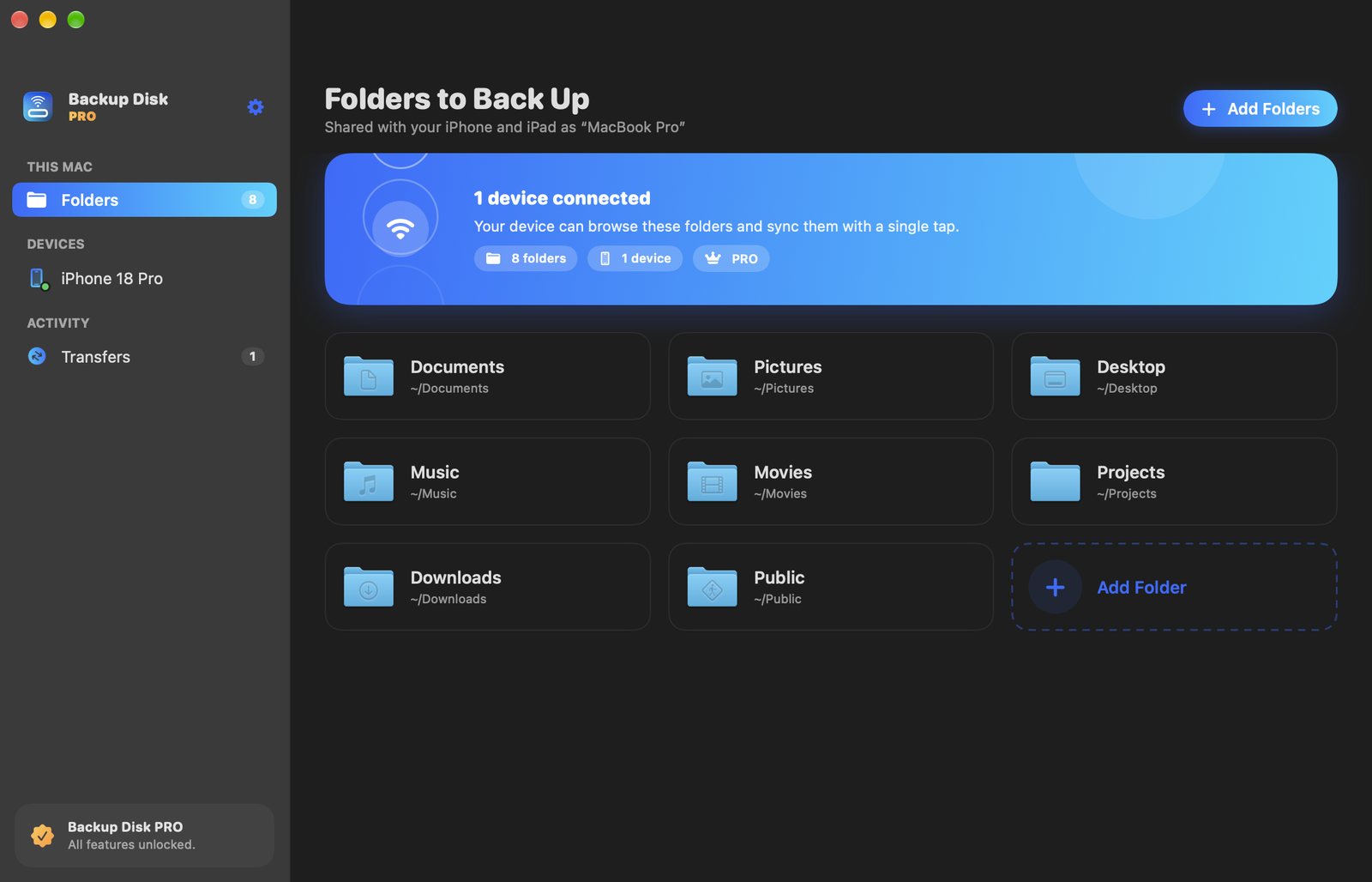
- Right-click a folder to Show in Finder or Stop Backing Up it. Files already backed up on your devices are not deleted.
- Backup Disk keeps running in the menu bar after you close the window, so your devices can reach your Mac. Click the menu bar icon to open the window again.
- To make your Mac always ready for backups, turn on Open at login in Settings (gear menu → Settings…).
3 - Find your Mac on iPhone or iPad
Open Backup Disk on your iPhone or iPad. When it asks for permission to find devices on your local network, tap Allow — Backup Disk needs it to discover your Mac. Your Mac appears in the Macs tab within a few seconds.
If your Mac doesn’t appear, check that Backup Disk is running on the Mac and that both devices are on the same Wi‑Fi network, then tap the refresh button.
4 - Pair with the sync key
Tap your Mac. The first time you connect, the Mac shows a six-digit sync key; enter it on your iPhone or iPad. This pairs the two devices so that only your devices can access your folders.
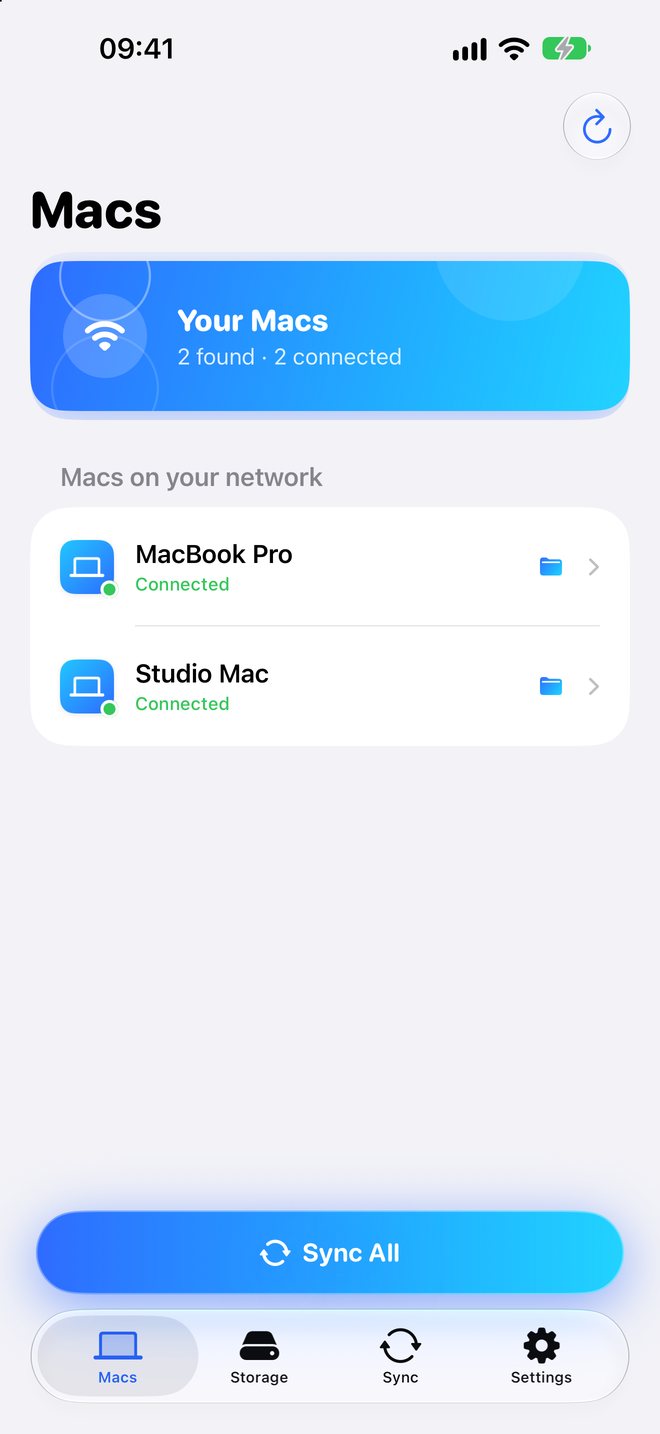
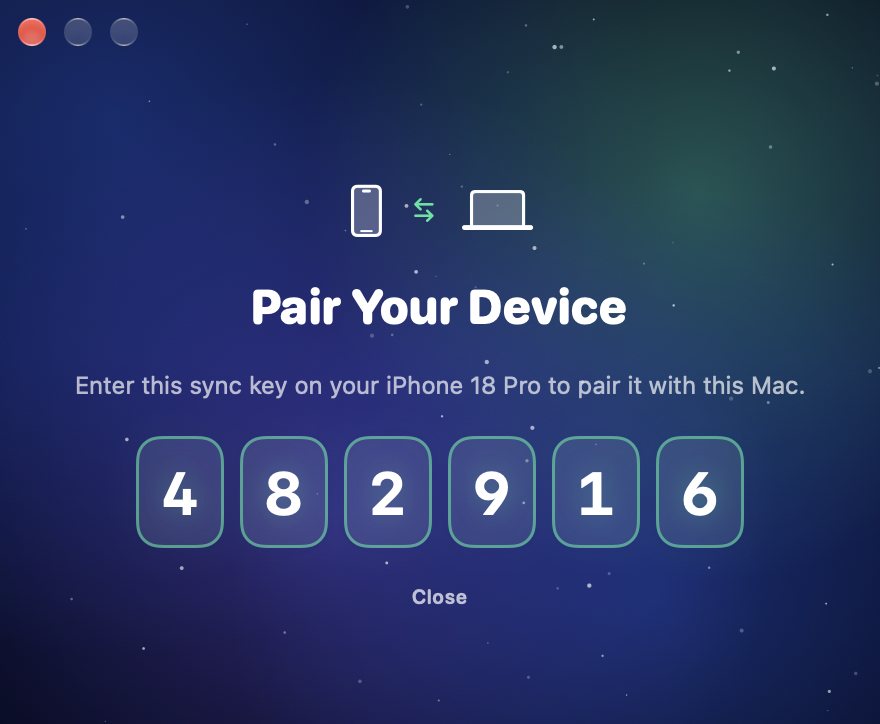
The free version connects one device at a time. With PRO, several iPhones and iPads can connect to your Mac at once — and you can back up several Macs to the same device.
5 - Browse and sync
After pairing, you can browse your Mac’s folders on your device. Tap Sync All to back up every folder, or tap Select, choose the folders and files you want, and tap Sync.
Follow the progress in the Sync tab: elapsed time, how many items are different, how many are already synced, the current package and the transfer speed. You can cancel a sync at any time.
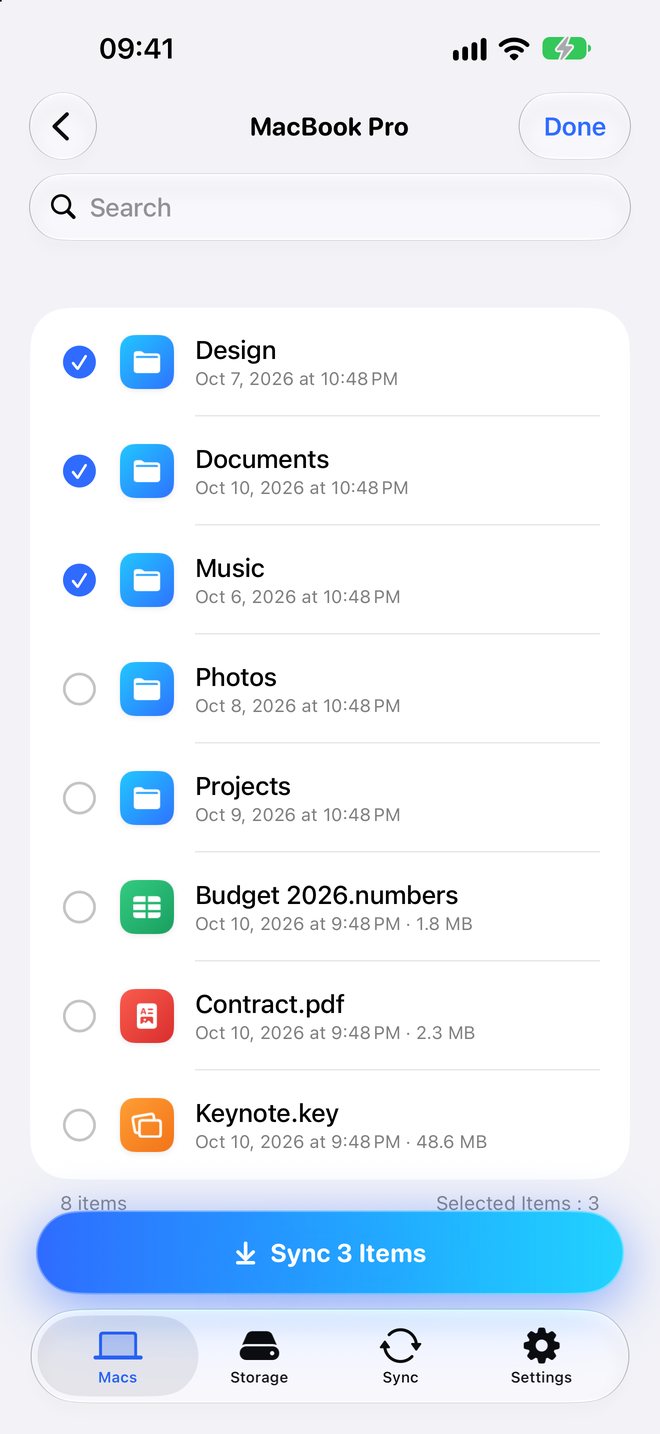
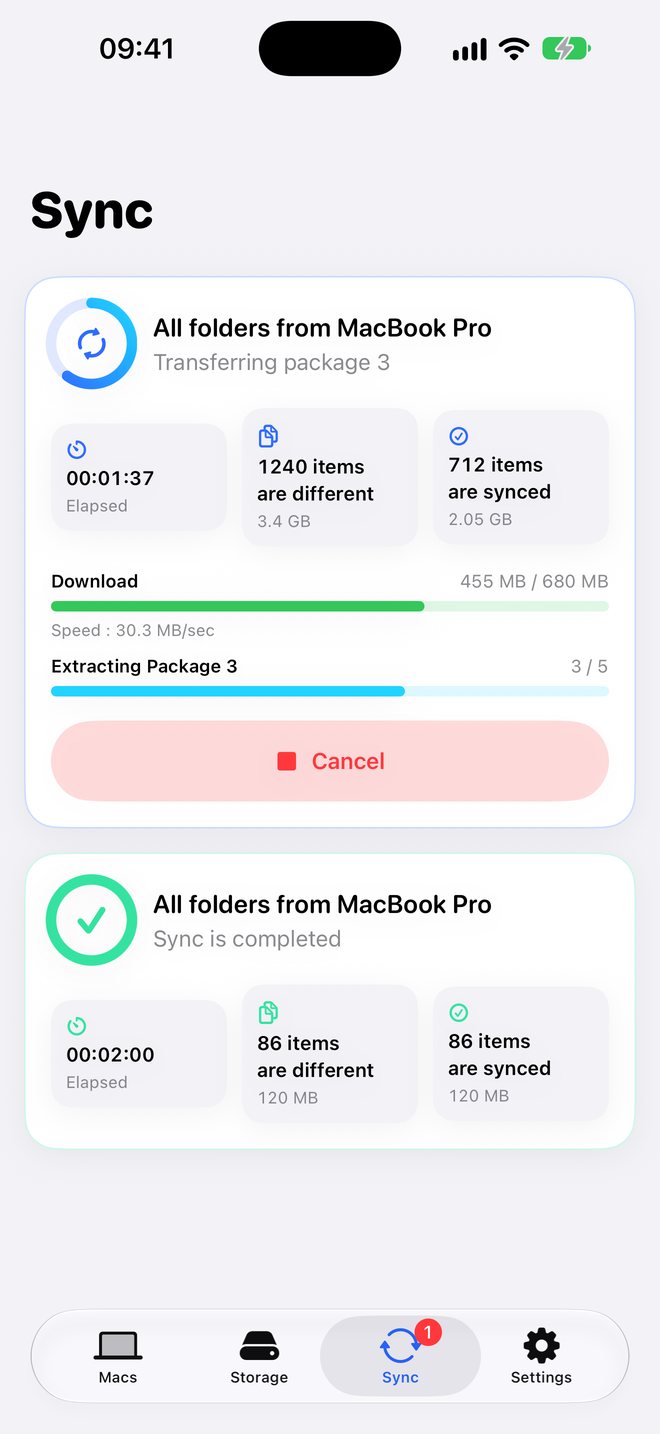
Backup Disk compares your Mac with what’s already on the device and copies only new and changed items. Small files are packed into large packages before they travel, so even folders with hundreds of thousands of files sync quickly. If a sync is interrupted, the next one copies only what’s left.
Tip: turn on Auto sync after connect in Settings. Whenever Backup Disk reconnects to a paired Mac, it starts syncing all of its folders automatically.
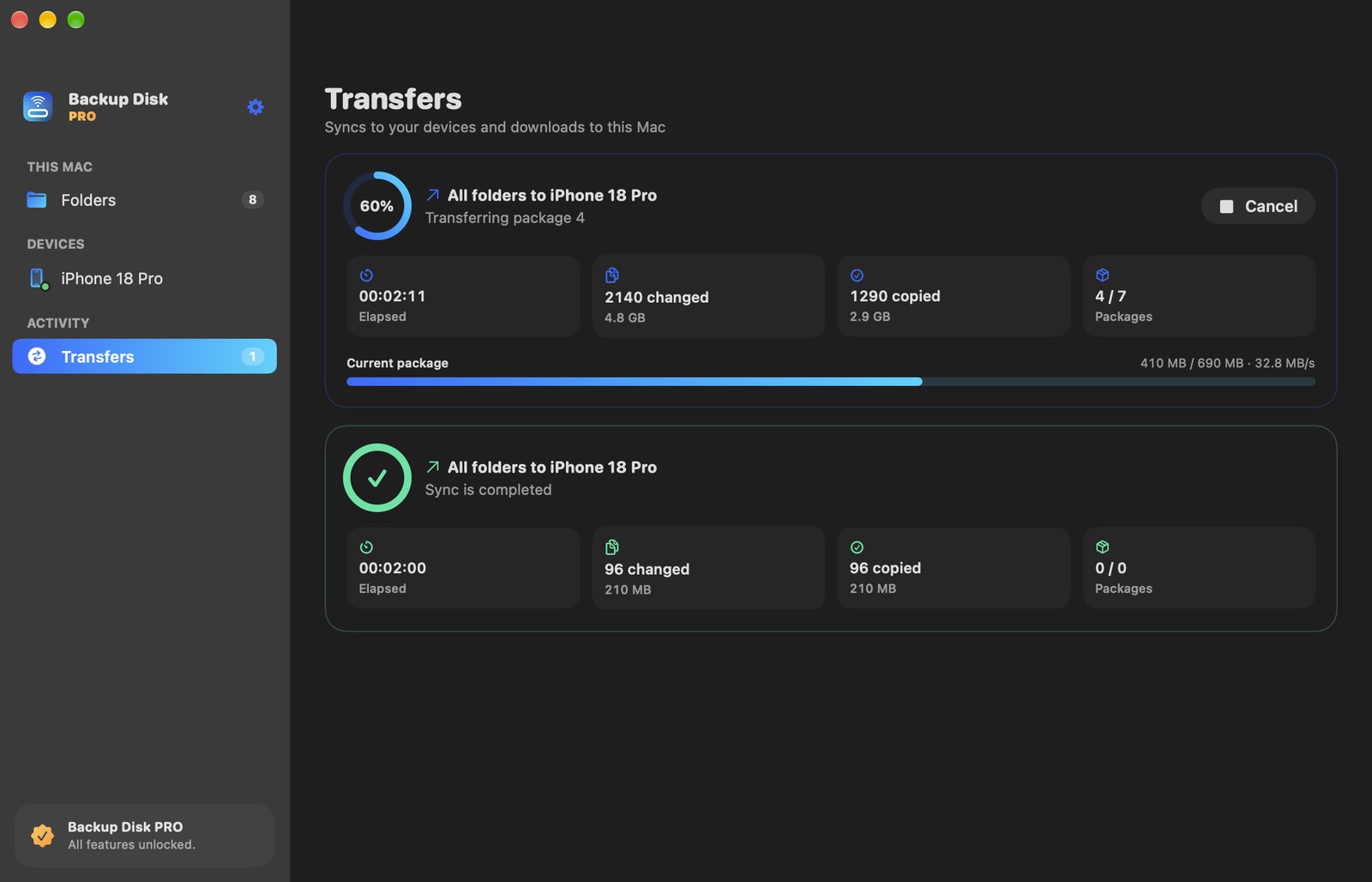
On the Mac, the Transfers section shows the same live progress for every device.
6 - Your backups on the device
When a sync finishes, a copy of each folder is in the Storage tab, grouped by Mac. The card at the top shows how much space your backups use, how much is still available and the device’s capacity.
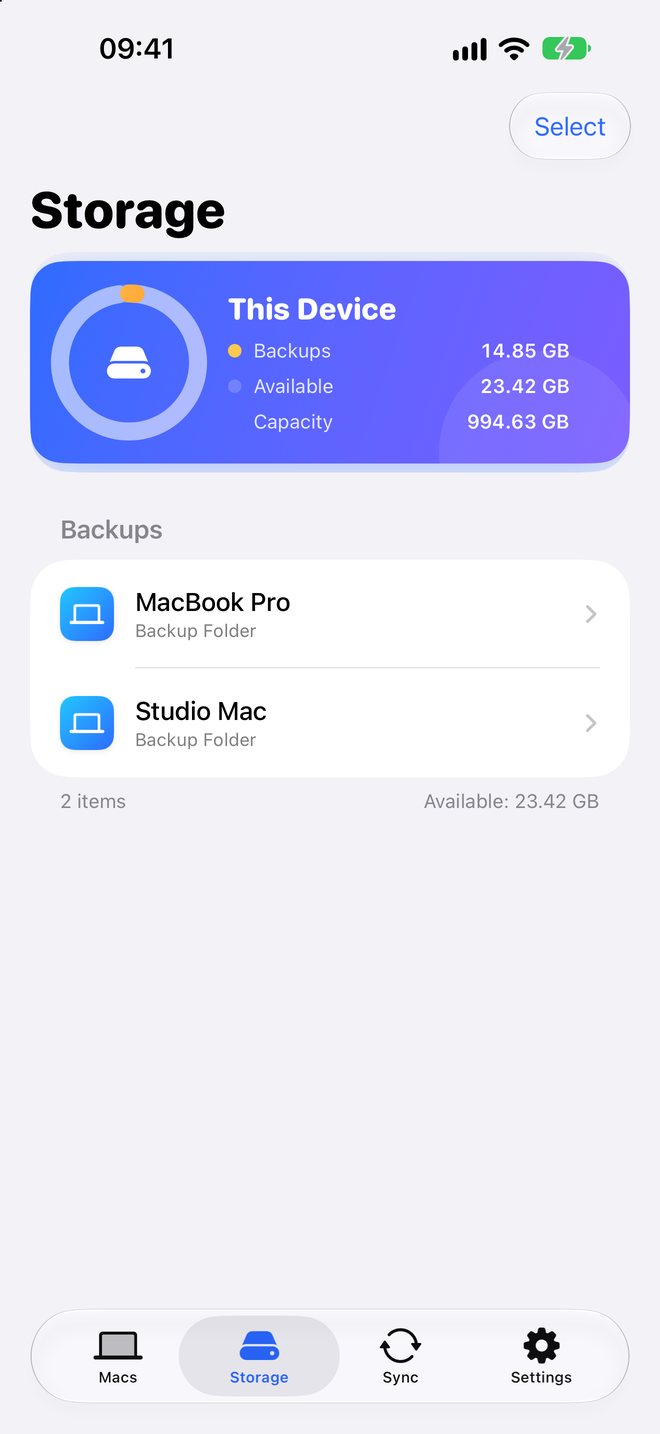
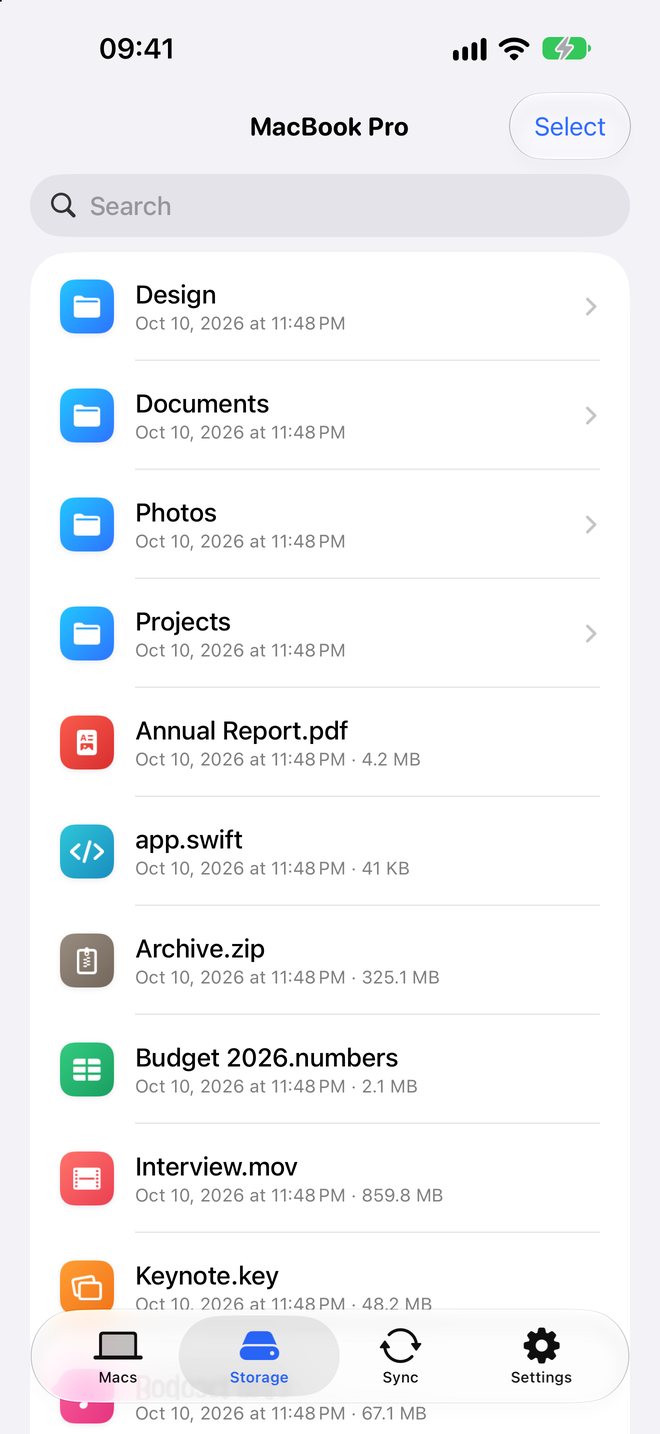
Open, search, rename or delete backed-up files right in the app — even offline. Your backups are also available in the Files app under On My iPhone / iPad → Backup Disk. They are stored in the app’s own storage and protected by your device passcode.
7 - Download files back to your Mac
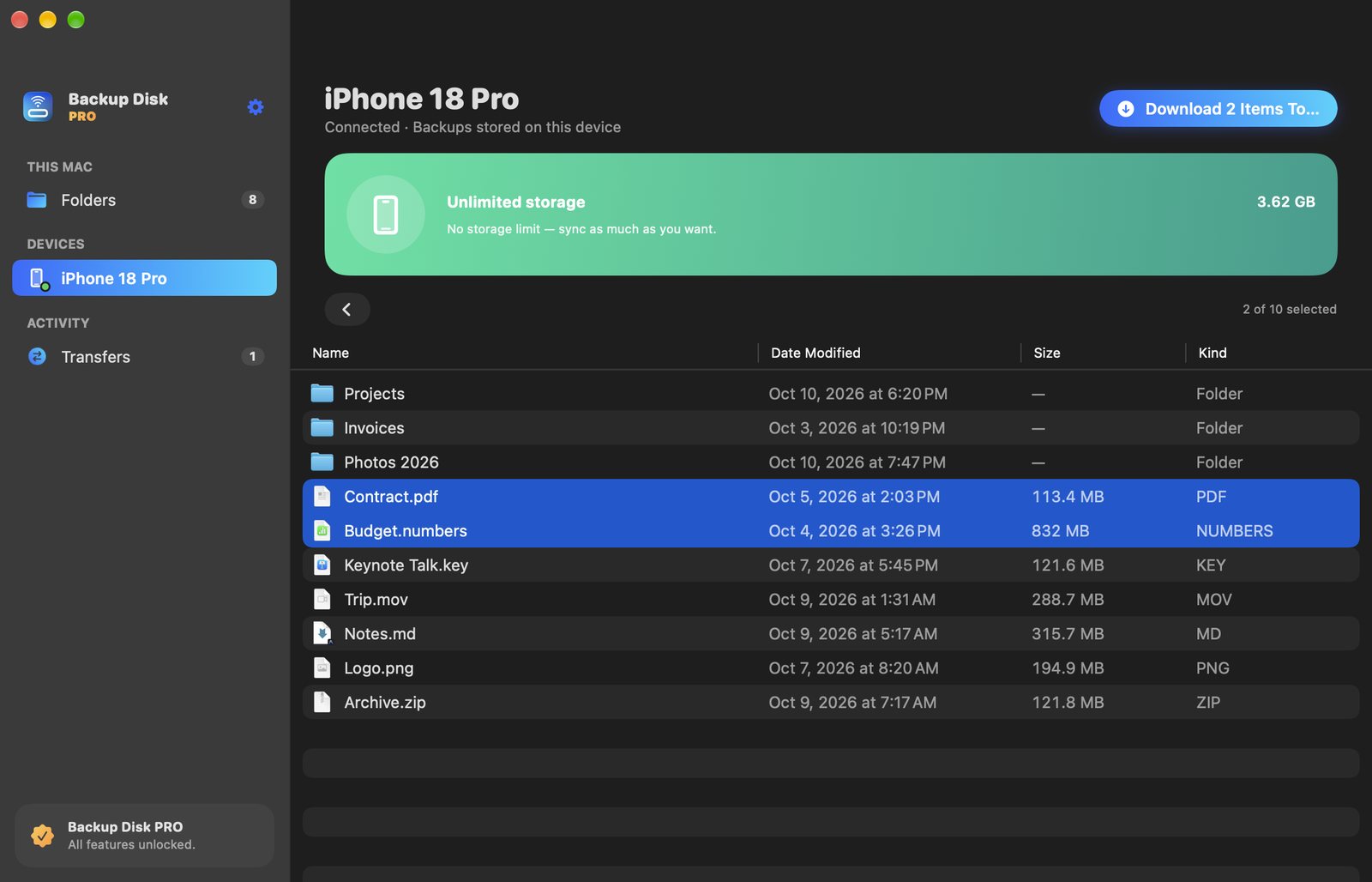
Lost or changed something on your Mac? Select your iPhone or iPad under Devices in the Mac app to browse its backups. Select files or folders and click Download To… to save them to a location of your choice. If an item with the same name already exists, Backup Disk asks before overwriting it.
Free version and PRO
- Free: up to 5 GB of backups per device, one connected device at a time.
- PRO: no storage limit and several devices connected at once.
PRO is available as a monthly or yearly subscription or as a one-time purchase, from the app on any of your devices. Purchases are verified by the App Store on your device; no account is needed. If you reinstall the app or use a new device, choose Restore Purchases in Settings. You can manage or cancel a subscription in your Apple Account settings (Manage Subscriptions in the iPhone and iPad app).
Troubleshooting
My Mac doesn’t appear on my iPhone or iPad
- Make sure Backup Disk is running on the Mac (look for its icon in the menu bar).
- Check that both devices are on the same Wi‑Fi network. Guest networks and some public networks block devices from seeing each other.
- On iPhone or iPad, open Settings → Privacy & Security → Local Network and make sure Backup Disk is turned on.
- Try a cable connection between the Mac and the device.
“Could not connect to Mac” with the free version
The free version allows one connected device at a time. Disconnect the other device, or upgrade to PRO to connect several devices at once.
The sync stopped before finishing
Keep the app open on your iPhone or iPad during a large first backup, and keep your Mac awake. If the sync is interrupted, just start it again — only the remaining items are copied.
Still need help?
Contact us — we usually answer within a day.